Printed/Branded Materials
Print Templates
Using the Brochure Template
To help faciliate the process of creating printed brochures, our office has provided new Adobe Express Brochure Templates. Every full-time faculty and staff member has access to Adobe by being part of the UT System. If you have never used Adobe please review the ITS Knowledge Base article "Adobe Creative Cloud: Instructions for Downloading." If you have issues signing into Adobe products, please submit a ticket through the ITS Service Desk.
This Adobe Express template can be used to produce a file that you can submit to Printing Services to print your brochure.
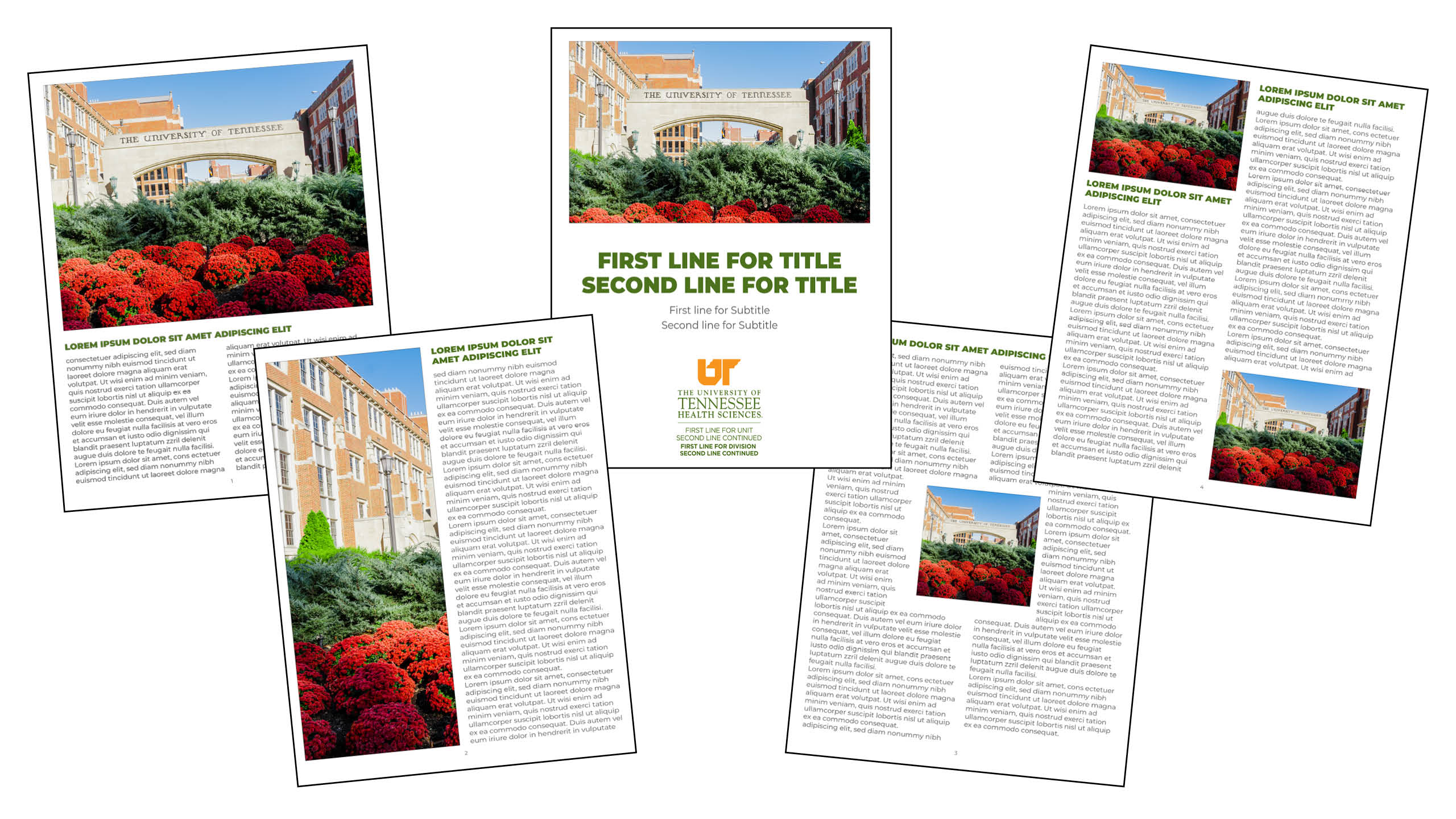
Tips for Creating your Brochure:
- You need to use high-quality images! You should avoid the following:
- Fuzzy images
- Pixaleted images
- Images you don't own the copyright too!
- Images that are very dark or very light and hard to see.
- Images that are low resolution and small.
- Use high-resolution images which are:
- 300 ppi (pixels per inch)
- High-res photography will be several MB in size
- Remember, the brochure is 8.5x11 so images should be big enough to fit within the image area.
- When you download your file from Adobe Express please save using the File Format "PDF Print (Best for Printing)" to send to the Printing Services.
- Do not upload brochures to the web, not even as a PDF. These templates were created so you can create printed brochures.
Resources
Helpful Guides
- Adobe Creative Cloud: Instructions for Downloading: ITS TechConnect article explains how to log into Adobe products and download them. Adobe Express can run in the browser, but you will need to log into using your netid@tennessee.edu email.
- Adobe Creative Cloud Access Request (Residents, Fellows, and Postdocs): ITS TechConnect article explains how residents, fellows, and postdocs can request access to Adobe. You do not need to request access if you are staff, faculty, and students.
- ITS TechConnect Service Desk - If you have issues logging into Adobe products, or accessing your UT educational account in Adobe please contact the Service Desk. You can also call them at 901.448.2222.
- Learn Adobe Express- Tutorial articles that can help you learn Adobe Express. Keep in mind that in our templates not everything is editable and some decisions have been made in the design. This is to keep the materials you produce on brand.
Remember to use high-quality images and these files are for printing only!
Using the Newsletter Template
To help faciliate the process of creating printed brochures, our office has provided new Adobe Express Newsletter Templates. Every full-time faculty and staff member has access to Adobe by being part of the UT System. If you have never used Adobe please review the ITS Knowledge Base article "Adobe Creative Cloud: Instructions for Downloading." If you have issues signing into Adobe products, please submit a ticket through the ITS Service Desk.
This Adobe Express template can be used to produce a file that you can submit to Printing Services to print your newsletter.
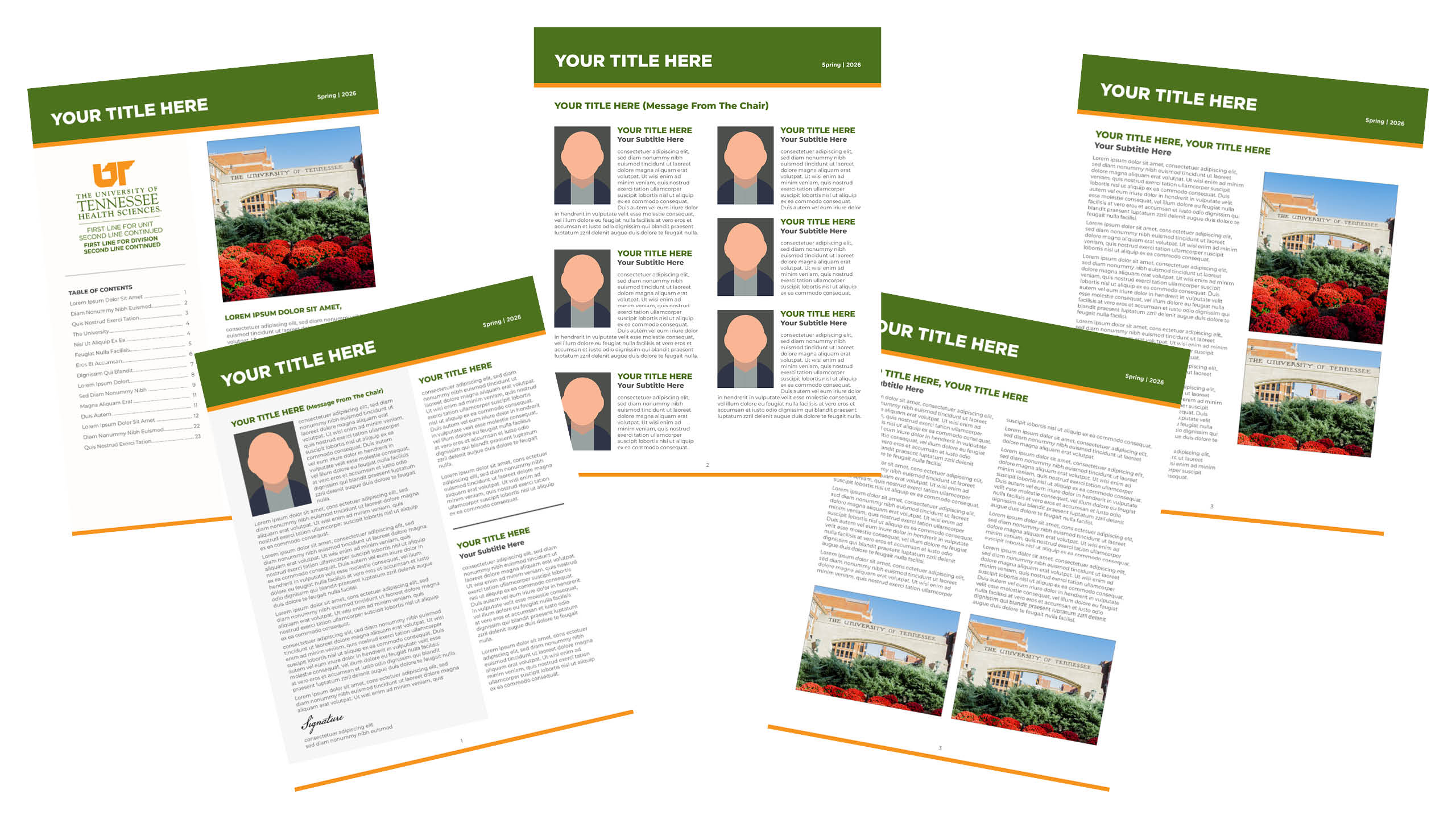
Tips for Creating your Newsletter:
- You need to use high-quality images! You should avoid the following:
- Fuzzy images
- Pixaleted images
- Images you don't own the copyright too!
- Images that are very dark or very light and hard to see.
- Images that are low resolution and small.
- Use high-resolution images which are:
- 300 ppi (pixels per inch)
- High-res photography will be several MB in size
- Remember, the brochure is 8.5x11 so images should be big enough to fit within the image area.
- When you download your file from Adobe Express please save using the File Format "PDF Print (Best for Printing)" to send to the Printing Services.
- Do not upload newsletters to the web, not even as a PDF. These templates were created so you can create printed newsletters.
Resources
Helpful Guides
- Adobe Creative Cloud: Instructions for Downloading: ITS TechConnect article explains how to log into Adobe products and download them. Adobe Express can run in the browser, but you will need to log into using your netid@tennessee.edu email.
- Adobe Creative Cloud Access Request (Residents, Fellows, and Postdocs): ITS TechConnect article explains how residents, fellows, and postdocs can request access to Adobe. You do not need to request access if you are staff, faculty, and students.
- ITS TechConnect Service Desk - If you have issues logging into Adobe products, or accessing your UT educational account in Adobe please contact the Service Desk. You can also call them at 901.448.2222.
- Learn Adobe Express- Tutorial articles that can help you learn Adobe Express. Keep in mind that in our templates not everything is editable and some decisions have been made in the design. This is to keep the materials you produce on brand.
Remember to use high-quality images and these files are for printing only!
Using the Certifcate Creator
To help faciliate the process of creating printed certificates, our office has provided a Certificate Creator. This creator can be used to produce a file that you can submit to Printing Services to print your certificate.
Before beginning you will need to request the certificate template from Creative Services.
Step-by-step guide on how to use the Certificate Creator
Tips for Creating your Certificate:
- You must unzip the zip file onto your computer
- The Certificate Creator will open in your default browser
- You will need to request the template for the certificate from Creative Services. They will provide you with a high-quality, high-resolution JPG to use.
- Use the font size to adjust the size of the names if you have some longer names in
your list.
- Keep in mind if you have several names that are signfiicantly longer than the other names, it might be easier to run those names separately from the rest so they can be adjusted accordingly.
- Be careful of the color you choose for the names. You need to make sure it doesn't clash with the rest of the certificate, is easy to read, and stays within our brand guidelines.
- Do not upload certificates to the web, not even as a PDF. These certificates are being created for print.
Resources
Printable Partner Signs for Clinical Sites
This is self-service PDF allows users to customize the College, Unit, or Program name by clicking the text fields on the second and third pages of the PDF.
Stationery Package
UT Health Sciences branded letterhead and envelopes are available for colleges, departments, and units on campus. Printed and digital letterhead are available. Personalized letterhead is not allowed. Business cards are available for faculty, staff, and graduate students. Stationery items feature the UT Health Sciences logo and may not be altered or customized. All UT Health Sciences stationery must be printed through UT Health Sciences Print Services.
To order letterhead, envelopes, or business cards, please contact UT Health Sciences Print Services or call 901.448.5553.
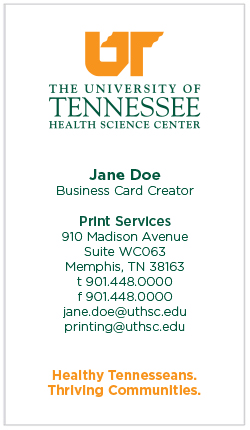
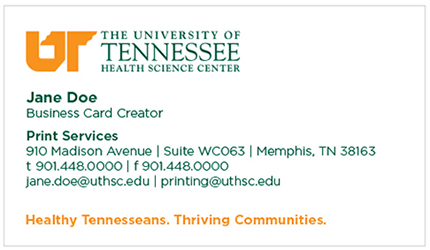
UT Health Sciences faculty and staff have the option of ordering vertical or horizontal business cards. Upon order, UT Health Sciences Print Services will provide a proof with three layout options. Each option contains the following information: name, title, department/office/unit, address, telephone number (with the option of including a cell phone number), and UT Health Sciences email address.
2-Column Horizontal Option
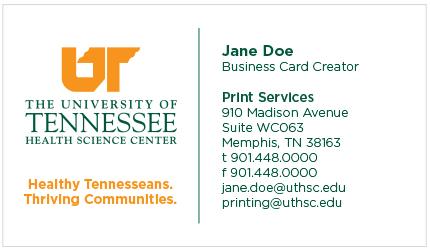
Horizontal Option
Vertical Option